> For the complete documentation index, see [llms.txt](https://docs.zerve.ai/guide/llms.txt). Markdown versions of documentation pages are available by appending `.md` to page URLs; this page is available as [Markdown](https://docs.zerve.ai/guide/source-control-git/install-github-cloud-app.md).
# Install Github (Cloud) App
Follow the installation steps described here if you are integrating Zerve with your Github Cloud Repositories.
**Step 1: Install Zerve GitHub App**
Navigate to the settings and install the Zerve GitHub app, which includes authentication and grants access to the required repositories. The following are the steps:
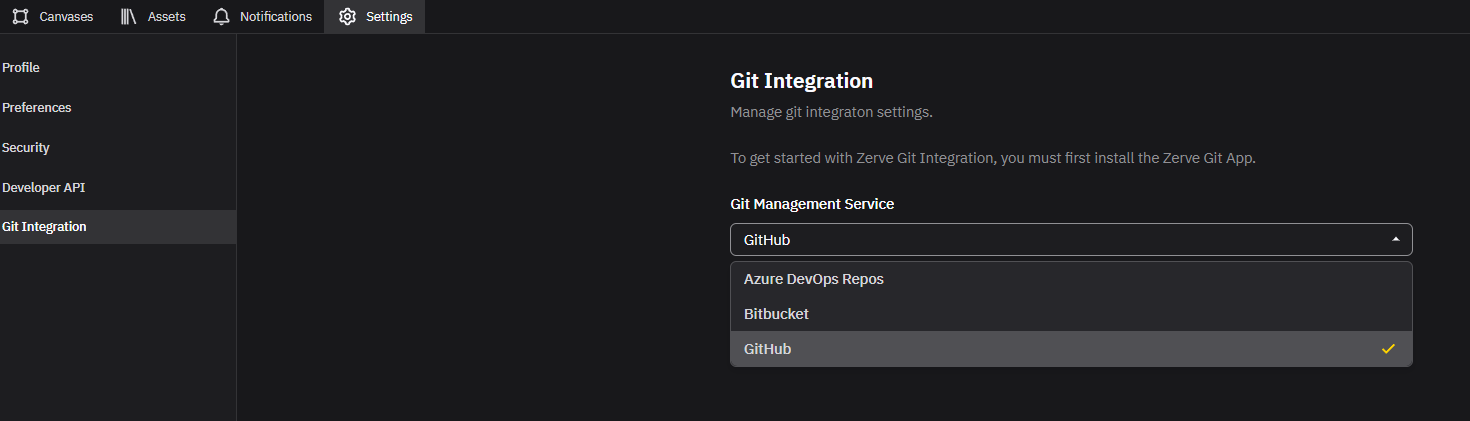
1. **Navigate to Settings:** Go to the appropriate settings page depending on whether you are installing in your individual settings or organization settings.
2. **Select Git Integration:** Select the **Git Integration** option on the left hand menu.
3. **Install the App:** In the **Git Management Service** dropdown, select **Github** and click the **Install** button.
**Step 2: Grant Repository Access**
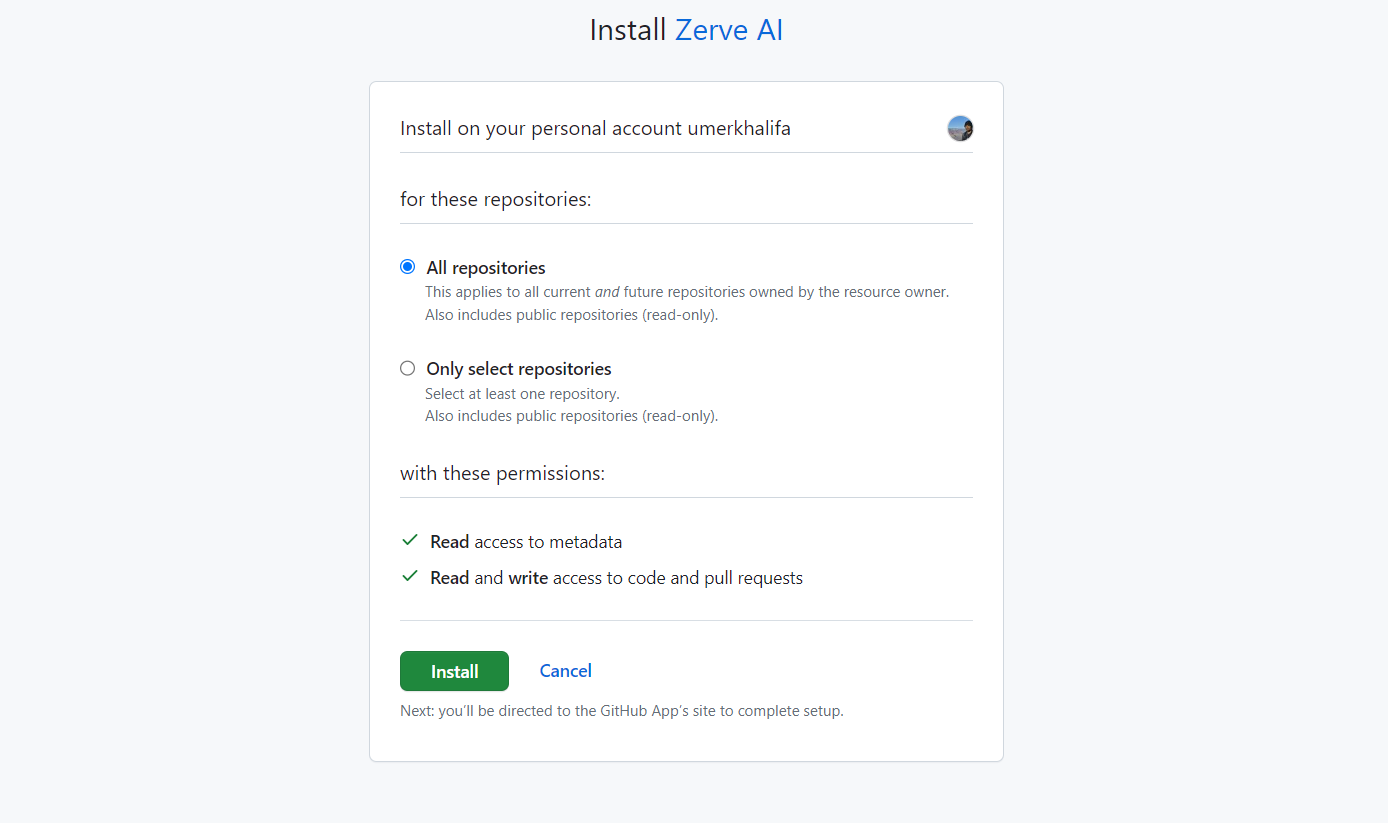
During the installation process, users have the option to grant access permissions, such as read, write, and pull, either for all repositories or selectively for specific repositories. The following are the steps:
1. **Grant Required Permissions:** During the installation process, the users are asked to grant permissions such as read, write, and pull to the app. Ensure you grant access to the required repositories.
2. **Authentication:** The users need to authenticate the app with your GitHub to finalize the installation.